Canva Magic Studio
Canva Magic Studio is an AI design suite for ecommerce and marketing teams that need to create and adapt copy, images, video, and layouts in one shared creative workspace. Canva has over 260 million monthly users and a massive template library, making it an accessible content creation platform for ecommerce teams that need to produce branded product images, social media graphics, and marketing materials without professional design skills. Its Brand Kit helps keep visual identity consistent across all assets.
Canva Magic Studio is an AI design suite for ecommerce and marketing teams that need to create and adapt copy, images, video, and layouts in one shared creative workspace. Canva has over 260 million monthly users and a massive template library, making it an accessible content creation platform for ecommerce teams that need to produce branded product images, social media graphics, and marketing materials without professional design skills. Its Brand Kit helps keep visual identity consistent across all assets.
Canva Magic Studio is an AI design suite for ecommerce and marketing teams that need to create and adapt copy, images, video, and layouts in one shared creative workspace.
- Views
- 0
- Uses
- 0
- Favorites
- 0
- Supported Platforms
- Shopify · Amazon · Etsy · eBay · WooCommerce · Squarespace · Wix · Custom
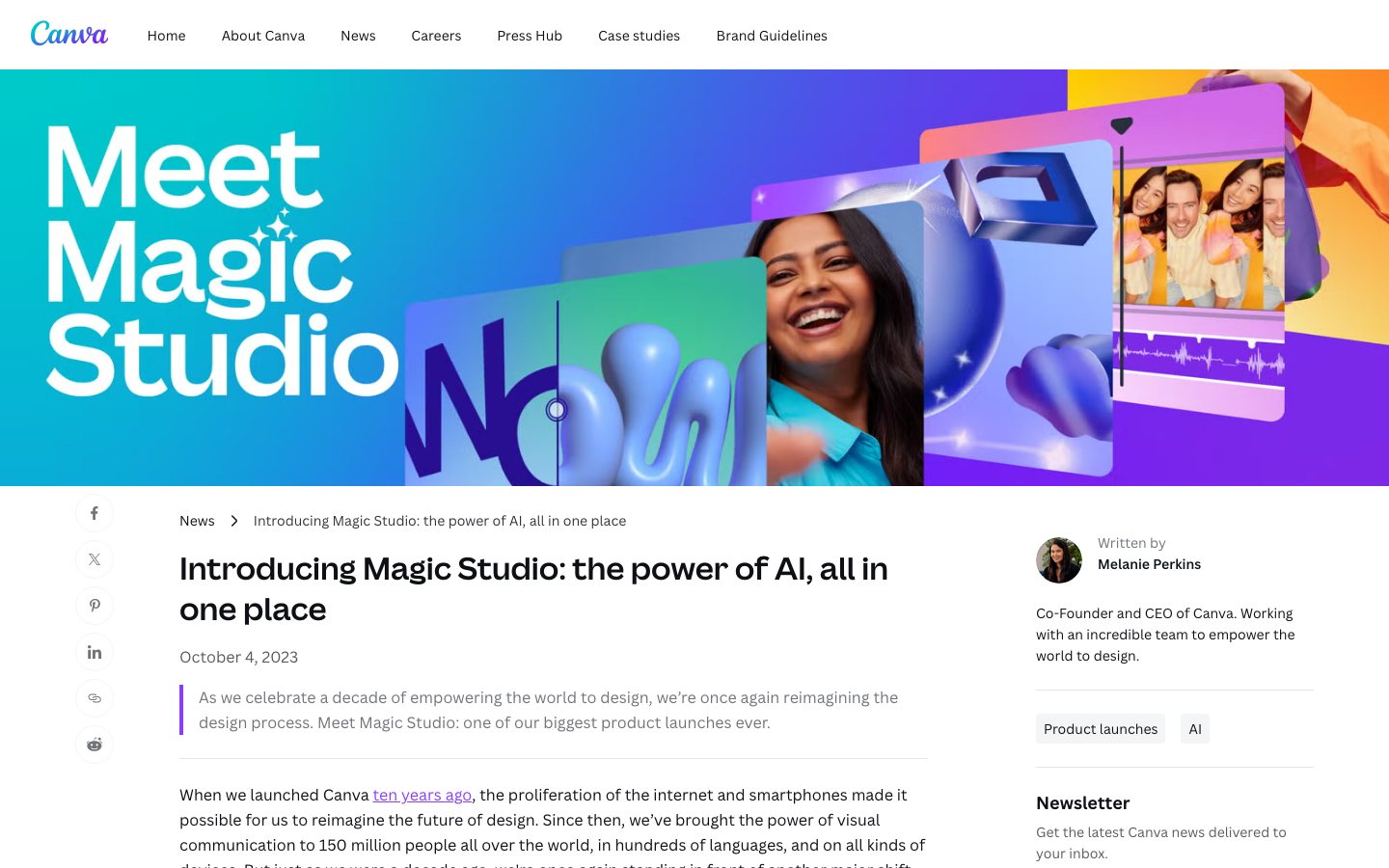
Buying view: Canva Magic Studio is a practical choice when non-designers need to produce product images, campaign graphics, and short videos from templates in one browser-based workspace. Brand Kit and reusable assets help with consistency, but generated copy and images still require factual and brand review.
Capabilities
Canva's AI-assisted design workspace helps ecommerce teams create editable campaign layouts, generate and revise images or short clips, draft copy, adapt approved designs for other sizes or languages, and produce data-driven variants in bulk. Operators provide the brief, source media, brand context, existing design, or structured data, then select and edit the output in Canva. Generated content remains reviewable work: product details, language, layout, and field mappings require human checking before anything is shared, downloaded, or published.
What problem it addresses
Ecommerce teams often need the same campaign idea as editable graphics, copy in other languages, designs in channel-specific sizes, and repeated product or audience variants, while source assets and brand choices remain consistent.
How people use it
The work happens in Canva's design editor and related AI tools. A creator can start from a prompt, media, an existing design, or a data table; choose the tool for the current task; inspect the generated or transformed result; and continue editing it in the same workspace. Access, AI usage, brand context, and team controls depend on the account and administrator settings.
A creator starts with a campaign brief, source media, existing copy, or an image. In Canva, they can generate an editable layout with Magic Design, create visual assets with Magic Media, revise an image with the photo tools, or draft and rewrite copy with Magic Write. Each route returns an editable result for the creator to review before sharing or downloading it.
These tools are optional routes inside the content workspace, so a task can use one or several of them. Regenerating or revising returns the work to the selected tool; Canva does not automatically approve or publish the result to a store or advertising channel.
The creator opens an existing design and selects the output needed for the next channel or audience. Canva can resize selected pages, translate their text, or transform the design into a new Canva Doc. The creator checks each resulting design or document and edits it before sharing, downloading, or using it elsewhere.
Resize and Translate may both be used on one design. Copy & resize preserves the original, while Resize this design changes the current design; Transform into Doc creates a separate document and keeps the source design.
The operator prepares a design with placeholder elements, then supplies rows and columns from Canva Sheets, a CSV or XLSX file, a supported data app, or a manually entered table. After connecting fields to design elements, they preview the rows and correct any mismatches before generating one multipage design or separate design files.
Bulk Create runs on desktop for the documented eligible plans. AI field matching is optional: incorrect matches can be detached and connected manually, and the preview is for checking rather than editing the generated pages.
What each module does and its role
Magic Design
Magic Design turns a prompt and optional uploaded media or Brand Kit context into suggested templates. The creator chooses a result, opens it as an editable design, and replaces text, media, or layout as needed. It arranges content into a design draft; separate Canva tools generate new images or video footage.
Resize & Magic Switch
Resize adapts selected pages to one or more target sizes, while Translate changes selected text into another language; the two actions can be used together. Copy & resize keeps the original design, whereas Resize this design changes the current one. Transform into Doc creates a separate Canva Doc for formats such as a summary, email, or presentation outline.
Magic Grab
Magic Grab separates a selected object from a photo while retaining the background. The operator can move, resize, or edit that object independently, and can undo the grab during the same editing session. It differs from Background Remover, which removes the background, and Magic Eraser, which deletes a brushed object.
Magic Expand
Magic Expand generates content beyond an image's current border to repair framing or change its orientation. The operator selects a target size or drags the crop handles, waits for processing, and then uses the expanded image inside a design. Faces, hands, and transparent backgrounds may produce weaker results and require inspection.
Magic Morph
Apply a prompted visual effect to text or shapes and reuse the style across design elements. It is useful for campaign treatments, but the transformed typography and legibility still require review.
Magic Edit and Magic Eraser
Magic Edit applies a prompt to the whole photo or a selected area to add, replace, or change visual content. Magic Eraser removes a brushed object, so the two tools solve different editing tasks. Generated edits can be empty, unexpected, pixelated, or visually inconsistent, so product details and scene accuracy still need human review.
Magic Media
Magic Media turns a text prompt into images, graphics, or short video clips inside Canva. Image and graphic routes support style choices and repeated generation; selected results can be inserted into the open design. Its video output is a short silent clip, which is distinct from Canva AI's separate video-clip generator.
Magic Animate
Apply coordinated animations and transitions across a design with one action. Presentation and video teams can use it as a motion starting point, then adjust timing before publishing.
Magic Write
Magic Write drafts new text from a prompt and can summarize, expand, or rewrite existing text across Canva designs. Marketers can use it for product descriptions, advertising copy, headlines, and campaign drafts, then proofread and edit the result before sharing the design. It does not verify product facts or provide automatic editorial approval.
Dream Lab
Generate visual concepts from text with Canva's Leonardo-powered image tool. Teams can use the results for brainstorming and marketing materials, then refine them inside the Canva editor.
Magic Studio at scale
Bulk Create links rows and columns from Canva Sheets, CSV or XLSX files, supported data apps, or a manually entered table to placeholders in a design. The operator can use optional AI field matching or connect fields manually, preview every row, and return to the mapping when data lands in the wrong element. It then creates one multipage design or a separate design for each row and saves the output in Projects.
Commercial plans
View official pricing detailsMagic Studio and Canva AI are included within Canva plans, not a separate subscription. The USD annual references below exclude tax; Pro is single-user and Business is per person. AI tools share an allowance and consume it at different rates, so usage multipliers are not guaranteed image or video counts. A complete monthly and add-on total is not calculated here.
Canva plans that include Magic Studio allowances
| Product or sales surface | Scope | Public price and status |
|---|---|---|
| Free | For one person trying core design tools and limited AI usage. Included plan entitlements
| $0/year |
| Pro | For one creator needing premium assets, resizing and a larger AI allowance. Included plan entitlements
| US$144/year for one person; tax extra |
| Business | For teams that need approvals, administration and larger AI allowances. Included plan entitlements
| $250/year per person |
| Enterprise | For organizations that need negotiated arrangements for governance, security, and support. Included plan entitlements
| Contact sales |
Comparable tools: price and workflow
| Tool | Workflow difference | Official public price reference |
|---|---|---|
| Adobe Firefly | Adobe Firefly: A generative AI creative suite deeply integrated with Creative Cloud and focused on commercial safety. Canva Magic Studio: An integrated AI toolkit for images, video, copy, and layouts for teams without dedicated designers. | Free: $0; limited daily generationsStandard: $9.99/monthPro: $19.99/monthPro Plus: $49.99/month; currently $34.97/month for the first year through October 21Premium: $199.99/month; currently $139.91/month for the first year through October 21Adobe Firefly official pricing ↗ |
| Photoroom AI Product Photography | Photoroom AI Product Photography: Create consistent ecommerce product visuals through an app, batch workflows, and an image API. Canva Magic Studio: Design product photos, social graphics, and marketing videos with AI in a single drag-and-drop platform for non-designers. | Free: $0Pro: $12.99/month or $89.99/yearMax: $34.99/month or $249.99/yearUltra ×1: $99/month or $990/yearUltra ×2: $198/month or $1,980/yearUltra ×5: $495/month or $4,950/yearUltra ×10: $990/month or $9,900/yearEnterprise: custom pricingPhotoroom official pricing ↗ |
| Jasper AI | Jasper AI: Enterprise marketing AI workspace for governed, on-brand content and reusable agents. Canva Magic Studio: Design product photos, social graphics, and marketing videos with AI in a single drag-and-drop platform for non-designers. | Pro: $69/seat/month, or $59/seat/month billed annually ($708/year)Business: custom pricingJasper official pricing ↗ |
| Shopify Magic | Shopify Magic: Shopify-native generative AI and Sidekick assistance included with merchant plans. Canva Magic Studio: Design product photos, social graphics, and marketing videos with AI in a single drag-and-drop platform for non-designers. | Basic: $25/month, or $19/month billed yearlyGrow: $65/month, or $49/month billed yearlyAdvanced: $399/month, or $299/month billed yearlyPlus: from $2,300/month on a three-year termShopify official pricing ↗ |
| Copy.ai | Copy.ai: GTM AI platform for reusable sales, marketing, and customer workflows. Canva Magic Studio: Design product photos, social graphics, and marketing videos with AI in a single drag-and-drop platform for non-designers. | Chat: $29/month, or $24/month billed $288/year; 5 seatsGrowth: $1,000/month billed $12,000/year; 75 seats and 20K workflow credits/monthExpansion: $2,000/month billed $24,000/year; 150 seats and 45K workflow credits/monthScale: $3,000/month billed $36,000/year; 200 seats and 75K workflow credits/monthEnterprise: custom pricingCopy.ai official pricing ↗ |
Frequently asked questions
What is Canva Magic Studio?
Canva Magic Studio is Canva's collection of AI-assisted creation and editing tools, rather than a separate app. It includes tools such as Magic Design for editable design drafts, Magic Media for generated images and short video clips, Magic Write for text, and photo tools such as Magic Edit and Magic Expand.
Is Canva Magic Studio free, or does it require a paid Canva plan?
Some Magic Studio tools are available on Canva Free, but tool access and AI usage depend on the plan. Canva groups eligible AI tools into Standard, Premium, and Ultra usage categories; some Standard tools do not draw from the shared allowance on eligible paid plans, subject to fair-use limits, while other tools use the monthly allowance. The account's Billing page shows current AI use and the remaining balance, so a paid subscription should not be treated as unlimited generation.
Where can a creator find Canva Magic Studio tools?
Magic Studio tools appear at task-specific entry points inside Canva. Magic Media is available from the editor side panel or Apps search; photo tools appear after selecting an image and opening Edit; Magic Write is available through Canva's writing controls; and Magic Design can be started from Canva AI on the homepage or from Templates in the editor. The exact tools shown can vary by plan, language, and administrator settings.
How does Magic Media generate AI images?
In the Canva editor, the creator opens Magic Media, chooses Images, describes the subject and scene, then selects a style and square, landscape, or portrait layout. A useful product prompt names the item, setting, composition, lighting, and any space needed for copy. The creator can add a preferred result to the design, generate another set, or refine the prompt before review.
Can Magic Design create a presentation from text?
Yes. A creator can describe the presentation's topic, audience, and key points, then select an editable draft and revise its slide text, images, layouts, and order. Magic Design provides a starting structure; product claims, figures, and the final narrative still need to be checked before the deck is presented or shared.
Can Canva generate video from a text prompt?
Yes. Magic Media can generate a short, silent video clip from a scene description and add it to an open design. Magic Media's Text to Video and Canva AI's Create a Video Clip are separate features with different output lengths and capabilities, so the creator should check the selected tool rather than assume their limits are the same.
What is the difference between Magic Eraser and Magic Edit?
Magic Eraser removes an unwanted object or person from a photo by brushing over the area. Magic Edit is used to add, replace, or change a selected part of an image from a text description. Both results need an edge and detail check; for product photography, the edited image should still represent the actual item accurately.
What can Magic Write do inside Canva?
Magic Write can draft text such as social captions, ad copy, product-description ideas, and outlines, and it can rewrite, shorten, or expand existing copy. The creator supplies the purpose, audience, format, length, and tone, then edits the result in the design. Generated text remains a draft and requires checks for product facts, claims, and brand voice before publication.
Native connections
Open a Canva design from HubSpot, edit it in Canva, and return the finished asset to HubSpot. Paid Canva features still require the relevant Canva plan; the separate HubSpot connection inside Canva AI remains an early-preview feature.
Canva + HubSpotAuthorize Canva and select one top-level Canva folder. Omnisend imports its designs as PNG files into the Image Library every 12 hours or on demand; deleting the Canva source does not remove the imported Omnisend copy.
Omnisend Canva integrationInstall Shopify Connect in both marketplaces to search Shopify product, collection, and file media inside Canva, edit it, and export finished designs back to Shopify. One Canva account can connect to one Shopify store; multiple Canva accounts may use the same store authorization.
Canva + Shopify ConnectConnect Canva to sync designs into Mailchimp Content Studio, then refresh the library when designs change. Synced assets are static PNG or JPG images, embedded links do not carry over, and files larger than 10 MB are converted to JPG.
Mailchimp Canva integrationReceive Canva comment, mention, invitation, and permission alerts in Slack, reply to comments there, and create a Magic Design draft from a Slack conversation. A Slack administrator may need to approve installation.
Canva + SlackUse the Google Workspace add-on across Drive, Calendar, Gmail, Docs, Sheets, and Slides to import supported Drive files, preview or edit Canva designs, create designs, attach static versions, and manage sharing. Managed Google accounts may require administrator approval.
Canva for Google WorkspaceSources
- Canva Magic Studio official product page
- G2 reviews for this product
- Capterra reviews for this product
- Canva Magic Studio product launch
- Canva Visual Suite 2.0 and Magic Studio at scale
- Canva Magic Design guide
- Canva resize and variants
- Canva plans and pricing
- HubSpot connection
- Omnisend connection
- Official workflow guide 1: Adapt an existing design for another audience
- Official workflow guide 2: Turn a brief into an editable design
- Canva AI usage and access
- Canva Magic Media help
- Canva Magic Edit help
- Canva Magic Eraser
- Canva Magic Resize help
- Canva Magic Write
- Canva Magic Write help
- Canva AI presentation maker
- Canva Bulk Create help
- Canva Transform into Doc help
- Canva Magic Grab help
- Canva Magic Expand help
User reviews
7,701 reviewsChecked Sep 20, 2026
Canva platform reviews, covering Canva as a whole rather than Magic Studio alone. The cards below are editorial summaries of the captured reviews.
Review summary (our paraphrase)
Review summary (our paraphrase)
Said the beginner-friendly interface and templates made it faster to create professional graphics, while having to pay for the strongest templates and features made early work take longer.
Read original reviewReview summary (our paraphrase)
Valued having templates, photo and video tools, AI, branding, and collaboration in one place; noted that discovery can be slow and large projects may feel sluggish.
Read original review708 reviewsChecked Sep 20, 2026
Canva product reviews on OMR, covering Canva as a whole rather than Magic Studio alone. The cards below summarize German-language reviews.
Review summary (our paraphrase)
Praised templates, team collaboration, and the stock library for agency work; reported slower loading, look-alike template results, and limited professional export controls.
Read original reviewReview summary (our paraphrase)
Used Canva Pro to create urgent social graphics without design training and valued its time savings, while noting a short learning period for first-time design work.
Read original reviewReview summary (our paraphrase)
Found Canva Pro easy for web and social graphics, video, brand assets, and mockups, but considered template search results cluttered.
Read original reviewCanva
Content checked:
Found templates, drag-and-drop editing, and collaboration fast and approachable, but considered fine adjustments clunky and many useful features paywalled.
Read original review